how to screen record on ps4 Capture Gameplay And Save Videos
3 November 2026 | 90
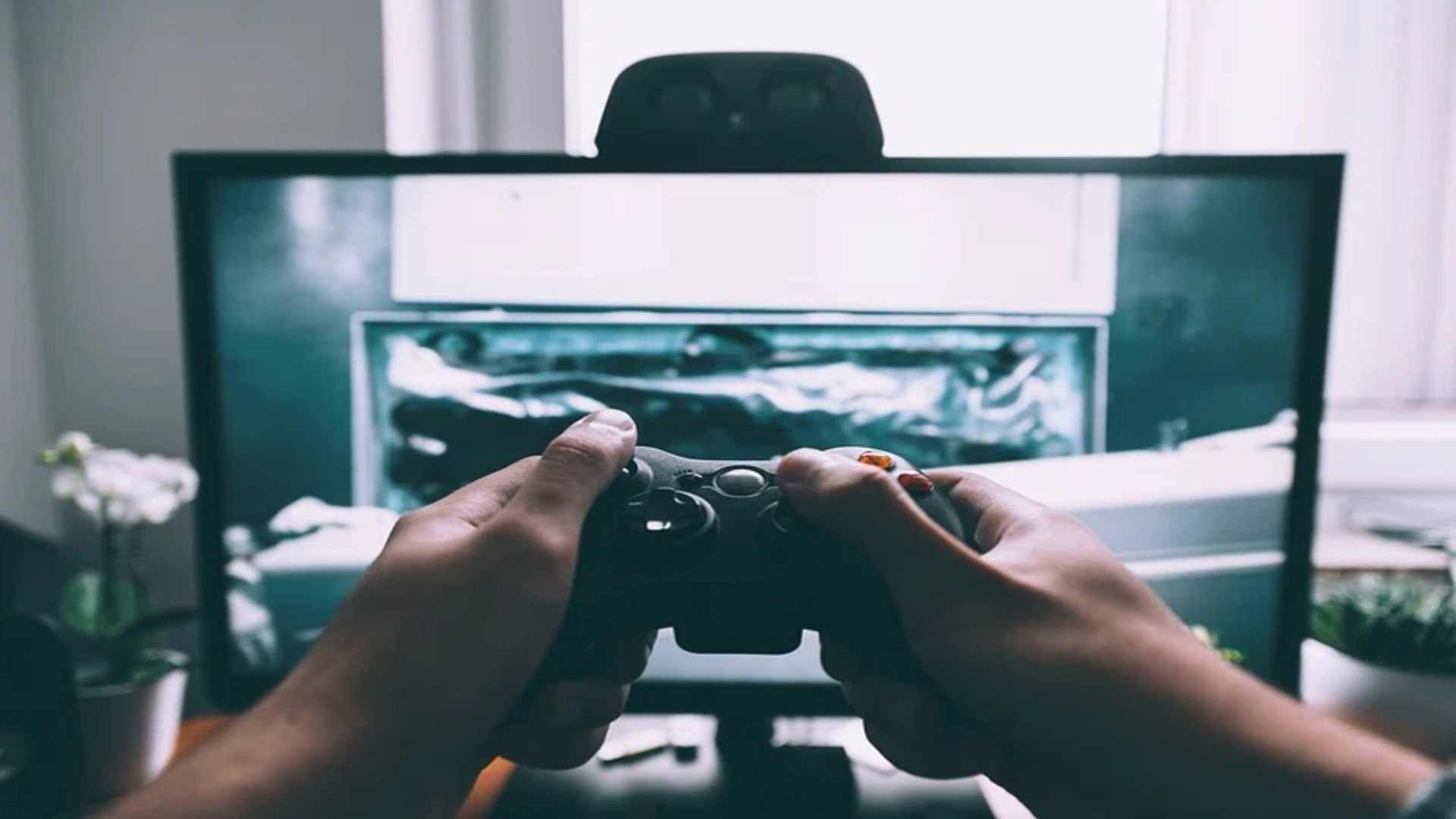
Capturing your favorite gaming moments on the PlayStation 4 is remarkably straightforward thanks to the console's built-in sharing features. Whether you want to save a high-scoring match or archive a stunning cinematic scene, knowing how to manage your recordings efficiently ensures you never miss a highlight. This guide walks you through the essential steps to record gameplay, adjust video settings, and manage saved clips seamlessly.
Starting and Stopping Manual Gameplay Recordings
To begin recording your screen manually, double-press the Share button on your DualShock 4 controller while in a game. A small film icon will briefly appear in the top-left corner of the screen to indicate that recording has started. Once you finish the sequence you want to record, double-press the Share button again to save the video clip.
Alternatively, the PlayStation 4 continuously records recent gameplay automatically in the background. If something unexpected or amazing happens, press the Share button once to bring up the overlay menu. From there, press the Square button to instantly save the recently buffered clip to your system storage.
Customizing Video Clip Settings and Length
Players can customize how the Share button behaves and how long background recordings last by accessing the system settings menu. Navigate to Settings on your PS4 dashboard, then select Sharing and Broadcasts. Here, you can change the length of video clips to range anywhere from 30 seconds up to 60 minutes depending on your storage capacity and needs.
Within the same menu, you can also adjust audio settings to include microphone input or party audio in your recordings. Enabling party audio allows you to capture conversations with teammates alongside pure game sounds. Taking time to configure these options guarantees your saved clips feature optimal audio quality for content creation.
Managing and Exporting Saved Video Clips
All recorded videos are automatically organized inside the Capture Gallery app on the main PS4 home menu or in your Library. Inside the gallery, clips are sorted by specific game titles, making it easy to browse, trim, or preview your footage. You can also use the free ShareFactory application to edit multiple clips directly on your console before sharing them.
To transfer videos off the console for editing on a computer, insert a formatted USB flash drive into one of the front USB ports. Highlight your chosen video clip in the Capture Gallery, press the Options button, and select Copy to USB Storage Device. Once the copy process completes, you can safely remove the drive and store your media files elsewhere.